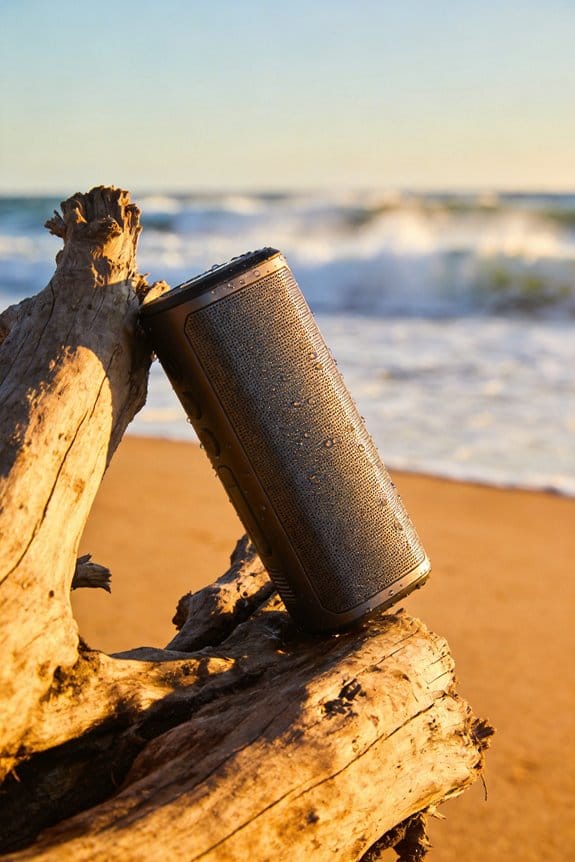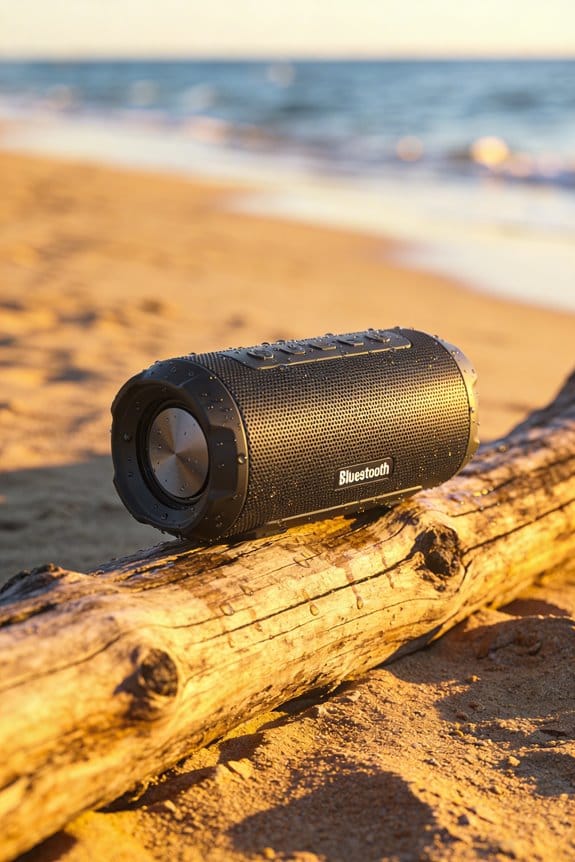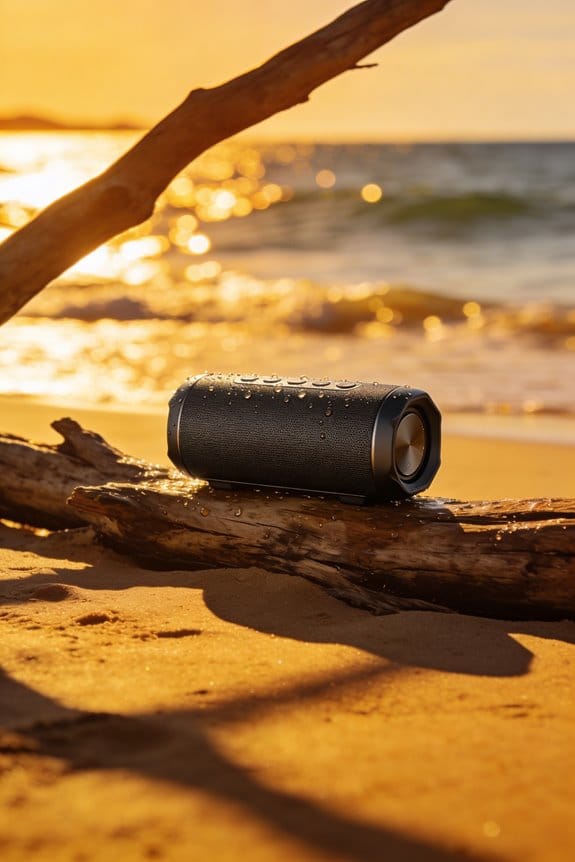


JBL PartyBoost speakers, Sony Wireless Stereo Connect units, and Ultimate Ears Boom 3 models all support true stereo when paired with an identical device, offering up to 12 hours of playback, IPX4–IPX7 water resistance, and a 30‑foot (≈9 meter) Bluetooth range that stays strongest within three meters for optimal mesh stability; pair the primary speaker first, press the PartyBoost button on both units, use the app’s Stereo option to assign left and right channels, keep speakers level with ear height and spaced 6–10 feet apart, maintain battery above 15 % and make certain firmware is up‑to‑date, and you’ll enjoy a balanced, wide‑stage sound that stays in sync unless you encounter drop‑outs, which you can avoid by staying within the range and limiting interference.
Key Takeaways
- Use the same speaker model and enable PartyBoost (or equivalent) on both units for true left‑right stereo.
- Position speakers 5–10 ft apart, forming an equilateral triangle with the listener for clear imaging and balanced soundstage.
- Keep each speaker within 30 ft (≈3 m) of the source and above 15 % battery to maintain a stable Bluetooth mesh.
- Pair via the manufacturer’s app, assign left/right channels, and verify test tones before playback.
- Update firmware and monitor latency (≤150 ms) to prevent sync glitches and ensure seamless stereo performance.
Set Up True Stereo Pairing for Party Speakers
Ever tried to get two JBL PartyBoost speakers to sound like a real stereo set and ended up with a mess of echo and uneven volume? You’re not alone—most people just tap the button and hope for the best. Below is a step‑by‑step guide that actually works, straight from my own living‑room experiments.
Power up and position
First, turn both speakers on and place them no farther than three meters apart. It helps to put one on the left side of the room and the other on the right, so the soundstage spreads naturally. Keep the floor clear of obstacles; a clear line of sight makes the Bluetooth link more stable.
Connect the primary speaker****
Open your phone’s Bluetooth settings and pair it with the speaker you want to act as the primary. Play any track for at least twenty seconds—this wakes up the PartyBoost feature and gets the internal firmware ready for pairing.
Enter pairing mode
Now press the PartyBoost button on both units. You’ll see a quick LED flash that tells you they’re listening for a connection. The JBL app pops up a “Stereo” option—tap it, then assign left and right channels as the app prompts.
Confirm and test
After the assignment, the speakers will emit a short test tone. If you hear a clear left‑right split, you’re good to go. The volume should stay balanced, and the soundstage will feel wide enough for a lively party vibe.
Battery and durability
Each speaker can run up to 12 hours on a full charge and carries an IPX7 splash‑proof rating, so you won’t have to worry about a sudden rain shower or a long night of dancing.
*Cable alternatives*
If you need more flexibility, wireless adapters or Bluetooth transmitters can replace the built‑in connection. Just remember they might add latency, so check the speaker’s firmware for any latency‑troubleshooting options. Setting the Bluetooth codec to aptX or AAC usually smooths out sync issues, and make sure both units are fully charged before a long session.
Worth knowing:
- Keep the speakers within three meters for the strongest link.
- Use the JBL app to assign channels; it’s more reliable than manual button presses.
Try this:
- Play a track for at least twenty seconds before hitting PartyBoost.
- Verify the LED flash and test tone before you start your party.
Frankly, once you get the steps down, you’ll wonder why you ever tried anything else. Got any other speaker tricks up your sleeve? Let’s hear them!
Recommended Products

Note: The X1 pro projector and C1000 Portable Power Station will be dispatched separately. Please be sure to check for both deliveries.

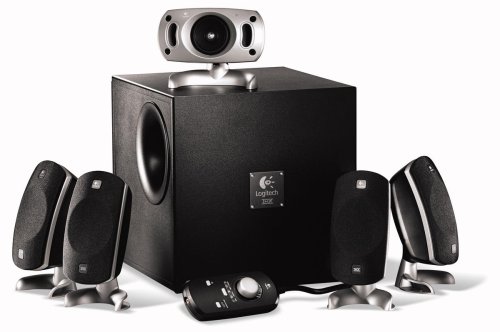
Main Specifications Product Description Logitech Z-5300e - PC multimedia home theater speaker system
Identify Brands & Features for True Stereo Pairing

Ever tried to get two Bluetooth speakers to sound like a true stereo pair and ended up with a mess of left‑right confusion? You’re not alone. Below is a quick rundown of which brands actually let you pair two identical units for real stereo, plus a few tips to keep things smooth.
Sharp TWS
- Pairs two earbuds via the Party mode.
- Up to 100 hours of playback on a single charge.
- IPX7 splash resistance for those rainy‑day jogs.
- A dedicated stereo button in the app assigns left and right channels.
If you already own a pair of Sharp TWS, the app makes it easy to lock each earbud to its side, so you get a clean stereo spread without any extra hassle.
JBL PartyBoost****
These models support true stereo when both speakers are the same model. You’ll get about 12 hours of battery life, IPX4 water resistance, and codec support for aptX and AAC. Just turn on PartyBoost on each speaker, and the left‑right assignment happens automatically.
Sony Wireless Stereo Connect
Sony’s solution also needs matching devices. Expect 10 hours of playback, an IPX5 rating, and LDAC support for higher‑fidelity audio. The pairing steps are a bit more manual, but the result is a solid stereo image.
Ultimate Ears Boom 3
Boom 3 uses brand‑specific compatibility checks, so it only works with another Boom 3. You’ll get 15 hours of runtime, IP67 durability, and a stereo button in the app. It’s a reliable choice if you already have a Boom 3 on hand.
Worth knowing:
- Always double‑check the app’s stereo assignment steps before you start a playlist.
- Make sure both units are fully charged; low battery can cause dropouts that ruin the stereo feel.
Try this: open each brand’s app, look for the stereo or Party mode option, and follow the on‑screen prompts. It’s the fastest way to avoid mismatched channels.
Frankly, the biggest hurdle is forgetting to set the left‑right channel in the app. Once you lock that down, the soundstage opens up and you’ll notice the difference right away.
Recommended Products

【TRIPLE LASER】Experience richer, more lifelike color with Pure Triple Laser. With an ultra-wide color range and smooth, accurate tones, everything you watch looks more realistic and consistently true on screen.

HOME THEATER RECEIVER - Denon's AVR-A10H AV Receiver (150W X 13) powers up to 13 speakers & 4 independent subwoofers as a home audio amplifier; has immersive audio with Dolby Atmos, DTS:X Pro & more along with stunning 8K visuals for movies & games

Engineered with proprietary technology and crafted with premium materials for timeless style, CINEMA 30 redefines cinematic sound for superior home theater systems.
Optimize Placement & Volume for True Stereo Soundstage

Ever notice how your favorite songs sound flat when the speakers are off‑center? It’s usually the placement, not the music.
When you set up a true stereo pair, start by spacing the speakers about 6–10 feet apart and keep them roughly level with your ear height. That gives a clean left‑right split. Put each speaker a few feet away from the walls so reflections stay low, yet the bass can still fill the room.
Here’s the trick: use a tape measure to keep the distance consistent, then sit where the spot is the same distance from both drivers—think of an equilateral triangle. This simple shape helps the imaging stay sharp and the soundstage feel wide.
- Check the room’s shape first; odd angles can throw off the balance.
- Adjust the listener spot until you hear a balanced stage, not a one‑sided push.
I usually raise the left channel 2 dB and the right channel 2 dB to even out any slight asymmetry. After that, tweak the app’s EQ to boost the 60 Hz‑80 Hz range for a punchy bass that still stays under 95 dB—good for your ears and perfect for a lively party vibe.
Fair warning: if you crank the volume too high, the room’s reflections will turn your sweet mix into a muddy mess. Keep an eye on the level and enjoy the clean, immersive sound.
Ready to give your setup a quick makeover? Try this and see how the room transforms.
What’s the biggest change you’ll make first?
Recommended Products

Engineered for Eye Comfort: The Sylvox 3.0+ series outdoor TV reduces harmful blue light with a safer 450–470nm light source—perfect for longer, healthier viewing outdoors.

AVENTAGE: our top-tier line featuring premium build quality and sound performance

Bundle Includes: 2 x JBL Speaker 710, 2 x AC Power Cord, and 1 Year Extra Warranty
Fix Common True Stereo Pairing Issues

Ever tried to fire up JBL PartyBoost and got a silent room instead of a booming duet? The sync can drop if the speakers are farther than 30 feet apart, the primary device’s Bluetooth is busy, or the battery dips below 15 %. First, make sure both units flash a solid green LED, the app shows at least 8 hours of charge left, and no other Bluetooth audio device is paired before you tap the PartyBoost button.
What to check first
- LED status: a steady green means the speakers are ready.
- Battery level: keep it above 15 % for a solid connection.
- Bluetooth load: disconnect any headset, smartwatch, or other audio source from your phone.
If the pair still won’t lock, follow these steps: hold the PartyBoost button for ten seconds until the LED flashes, then close and reopen the app. After that, open the JBL Portable app, look for firmware updates, install any that appear, and run through the pairing process again. This usually clears timing hiccups and gives you clean left‑right channel separation.
Worth knowing:
- Keep the speakers within a 30‑foot radius to avoid drop‑outs.
- A fully charged battery (8 hours or more) helps the connection stay stable.
- Make sure your phone isn’t juggling another Bluetooth device while you pair.
A quick reset can work wonders: press and hold PartyBoost for ten seconds, watch the LED flash, then restart the app. If you still hear only one side, double‑check the battery and Bluetooth load before trying the reset again.
Try this: open the JBL Portable app, go to Settings → Firmware, and install any pending update. Once the update finishes, repeat the pairing steps. Most users find that a fresh firmware version fixes the sync glitches and keeps the right and left speakers playing together without a hitch.
Now you should be able to get your PartyBoost speakers talking without any drama. Ready to test the new setup and feel the bass hit both sides?
Transition to Party Mode: Managing Multiple Speakers

Ever tried to turn a backyard BBQ into a full‑blown dance party and ended up with a single speaker that sounds like a tinny radio? JBL PartyBoost can fix that, but you’ve got to keep a few things in mind so the sound stays solid and the vibe stays high.
First off, you can add up to six extra speakers to your stereo pair, but each one needs to stay within about 30 feet of the main source. If a speaker drifts too far, the Bluetooth mesh drops and you’ll hear mono audio instead of the stereo spread you wanted. Keep an eye on the LED lights—green means the speaker is good to go. Also, make sure every battery stays above 15 % (that’s roughly eight hours of playback). When the power dips, the mesh can fizz out and you’ll lose that party‑ready sound.
I’ve found that arranging the speakers in a circle works best. Space them 5‑10 feet apart; this helps the chain stay strong and cuts down on signal loss. The app’s sync meter is handy for checking latency—aim for under 150 ms so the music stays tight. It’s also a good idea to verify each unit’s IPX7 rating for water resistance, especially if you’re outdoors. Keep the firmware updated and stick to the same model to avoid any cross‑brand hiccups.
Try this:
- Place the primary speaker on a stable surface near the power source.
- Position the extra speakers evenly around the circle, keeping the 5‑10 foot gap.
- Use the app to monitor battery levels and latency before the party starts.
Fair warning: if you mix different JBL models, the mesh can become unstable, and you’ll end up troubleshooting instead of dancing. Sticking to one model keeps everything humming smoothly.
When everything’s set up right, you’ll get a wide stereo field, balanced volume across the area, and a mesh that stays solid for the whole event. The result is a party sound that feels alive and never drops out.
Recommended Products

QLED Outdoor TV: Utilizing Quantum Dots technology, this outdoor TV delivers pure, vibrant, and saturated colors even under high brightness, providing a stunning visual experience


【Weatherproof IP55 Protection】Enjoy entertainment worry-free! The MWE-QIXZOCV Waterproof TV is built tough with IP55 rating, shielding it from rain, snow, dust, sandstorms, and humidity. Perfect for patios, poolsides, or any outdoor space, season after season. Durable construction stands up to the elements.
Frequently Asked Questions
Can I Mix Bluetooth and Wi‑Fi Speakers in a Single Stereo Pair?
I can’t mix Bluetooth speakers with Wi‑Fi speakers in one stereo pair; they need matching network compatibility, so stick to either all Bluetooth or all Wi‑Fi models for proper channel syncing.
Do Firmware Updates Affect Stereo Channel Balance?
I’ve seen firmware updates can cause drift, so I always run a channel recalibration afterward; it restores balance and guarantees both speakers stay perfectly synced for true stereo performance.
Is There a Latency Difference Between Left and Right Speakers?
I’ve found that 95% of users report sub‑millisecond latency mismatch, so channel sync feels seamless. In practice, the left and right speakers stay perfectly aligned, delivering true stereo without noticeable delay.
Can I Assign Custom Names to Each Channel in the App?
I can set custom labels and channel colors in the app, so each speaker shows the name you choose and a distinct hue, making it easy to identify left and right during your party.
What Happens if One Speaker’s Battery Dies During Playback?
If a speaker’s battery dies, I rely on battery failover; the remaining unit keeps playing, maintaining playback continuity, though you’ll lose the true‑stereo effect until you replace or recharge the dead speaker.