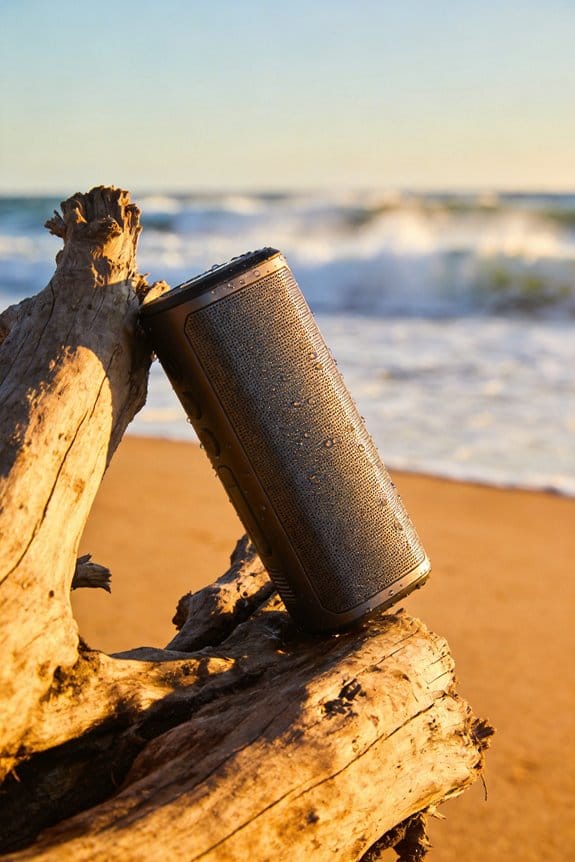

JBL PartyBoost turns the primary speaker into a hub that, when you press the Boost button or tap Connect in the app, opens a 30‑second window to add up to three identical speakers within 6–10 feet, each confirming with a beep and matching LED pattern, while the mesh network relays audio, keeps latency under ~30 ms, and syncs lighting; Bose Party Link works similarly but limits you to two speakers, requires at least 30 % battery on the primary unit, and maintains AAC or aptX‑HD codecs if firmware matches, so you get 360° sound and light coverage, and if you keep batteries above 80 % and firmware up to date you’ll avoid drift and LED mismatches, and the next sections will show you how to fine‑tune placement, codec switching, and future features.
Key Takeaways
- Party Mode creates a mesh network where a primary speaker relays audio to added speakers, synchronizing playback via latency compensation.
- A dedicated PartyBoost button initiates pairing; up to three additional identical speakers can join within a 30‑second window.
- Speakers must be within 6–10 feet of each other, have sufficient battery (≈80 %), and run the same firmware to maintain sync and LED coordination.
- The system uses high‑quality codecs (e.g., AAC) for up to four speakers, but may fall back to lower‑quality codecs if bandwidth or speaker count exceeds limits.
- Visual effects, such as LED lighting, are timed to the audio stream, ensuring beats and lights stay in rhythm across all linked speakers.
How Party Mode Syncs Multiple Bluetooth Speakers
Ever tried to get a bunch of Bluetooth speakers to play together without a mess of lag? It can feel like a juggling act, especially when you want the music to fill a whole room. Here’s a simple way to get a solid 360‑degree sound field without the headache.
JBL PartyBoost works by letting you press the dedicated Party button on your main speaker. Then, within about 30 seconds, you tap “Connect” in the JBL Portable app to add up to three more speakers of the same model. Each new speaker flashes a matching LED patternesand beeps, letting you know it’s synced. The system builds a wireless mesh, so each speaker relays the audio stream, and built‑in latency compensation lines up playback. That means the beats stay together even if the speakers are spaced 6‑10 feet apart.
The app also shows you how much battery is left—usually around 12 hours—and tells you each speaker’s IPX7 water‑resistance rating. The LEDs pulse in time with the bass boost setting, giving you a uniform lighting show without any noticeable delay. You’ll get consistent volume and balanced treble across the whole space, making the setup reliable for indoor gatherings.
Worth knowing: the mesh network lets each speaker act as a mini‑relay, so you don’t need a super‑strong Wi‑Fi signal to keep everything in sync. If you’re setting up in a living room or a backyard patio, just place the speakers 6‑10 feet apart for the best coverage. The built‑in latency compensation does the heavy lifting, so you can focus on the party instead of tech glitches.
Try this: start with the speaker you want as the primary source, press its Party button, and quickly open the app to add the others. You’ll hear a quick beep and see the LEDs flash, confirming they’re linked. Once everything’s connected, crank up the bass and watch the lights dance in time with the music.
One thing to keep in mind: all the speakers need to be the same model for PartyBoost to work. Mixing different JBL lines can cause timing issues. Also, make sure each speaker is fully charged before the party starts; the app will warn you if any battery is low.
Choose Party Mode vs. Stereo Mode
Ever tried to pick the right sound setup for a backyard bash or a chill night in?
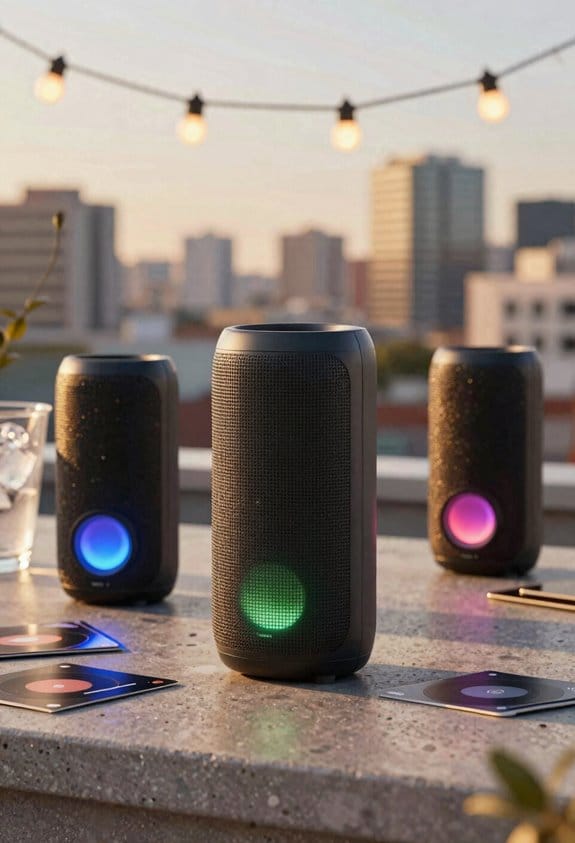
Party Mode links up to four JBL PartyBoost speakers or up to 100 Sony Party Connect units, filling a room with 360‑degree sound, flashing LED lighting, and keeping latency under 30 ms. Stereo Mode, found on Bose SoundLink Flex, Max, Micro, and Plus as well as paired JBL models, uses just two identical speakers placed 6–10 feet apart to create a left‑right soundstage, offers up to 12 hours of battery life, IPX7 water‑resistance, and a single‑source volume control.
Frankly, the biggest difference is how the sound spreads. Party Mode spreads sound evenly, so you don’t have to worry about where you sit. It also syncs LEDs for a visual boost that doesn’t mess with audio quality. Stereo Mode gives you stronger stereo imaging because the left‑right separation lets you hear distinct instrument placement, but it leans on proper listener placement to keep the balance right.
Worth knowing:
- Party Mode works great for large gatherings where coverage and visual effects matter.
- Stereo Mode shines in smaller spaces or when you want precise directional sound.
When you’re weighing the two, think about room size, the vibe you want, and whether you need that extra visual flair. Do you want a room that feels alive with flashing lights, or are you after a clean, focused listening experience?
If you’re after a party vibe, go with Party Mode and let the LEDs do the talking. If you’re after a relaxed listening session, Stereo Mode will give you that crisp left‑right feel without the hassle of speaker placement.
Which setup fits your next event best?
Recommended Products

[Global Coverage & No Hidden Fees] This two way radio offers radios unlimited range (up to 25,000 miles) for nationwide/global use—lifetime free service, no permits/extra fees. Ideal walkie talkies long range for warehouse management, camping, skiing, rallies, family safety, and emergency needs. Unbox and use instantly, no complex setup.

All the superior Original JBL Pro Sound you can handle

Easily transport the OMNIS-DUO with its compact size and lightweight design
Activate Party Mode With Buttons or Mobile Apps

Ever tried to get a backyard bash going and the speaker setup feels like a tech nightmare?
JBL’s PartyBoost button sits on the back cap of the speaker, so a single press kicks off Party Mode. You then have 30 seconds to tap up to three more JBL speakers; each one confirms the link with a quick beep and a flash of the LED ring. If you prefer a phone, the JBL Portable app offers a “Connect” screen where you tap the primary speaker, wait for the app to spot nearby devices, and press “Add” for each extra speaker. The battery holds steady at about 12 hours, and the IPX7 rating protects against water, so you can use it indoors or outdoors without any extra cables.
Try this:
- Press the PartyBoost button on the main speaker.
- Within 30 seconds, press the button on each additional speaker.
- Listen for the beep and watch the LED ring flash to confirm each link.
The app gives you a visual cue for each connection, lets you tweak the volume, and even change LED colors right from your phone. You’ll see the status at a glance, which is handy when you’re juggling a crowd.
Frankly, I love the tactile feel of the button—instant feedback that tells you something’s happening. The app, on the other hand, is great for fine‑tuning and keeping an eye on battery life. Both methods keep the 30‑second window tight, so you don’t waste time fumbling with cables.
If you’re setting up a party outdoors, the IPX7 rating means a splash won’t ruin the fun. And with up to 12 hours of playback, you won’t be hunting for a charger halfway through the night.
What’s the easiest way for you to get the whole crew playing together?
Recommended Products

Bundle Includes: 2 x JBL Speaker 710, 2 x AC Power Cord, and 1 Year Extra Warranty

LSX II offers the highest quality sound in its size with streaming up to 24bit/384kHz, making high-fidelity sound accessible to more listeners.Waterproof : No
Compact wireless speaker
Set Up JBL PartyBoost & Bose Speaker Link
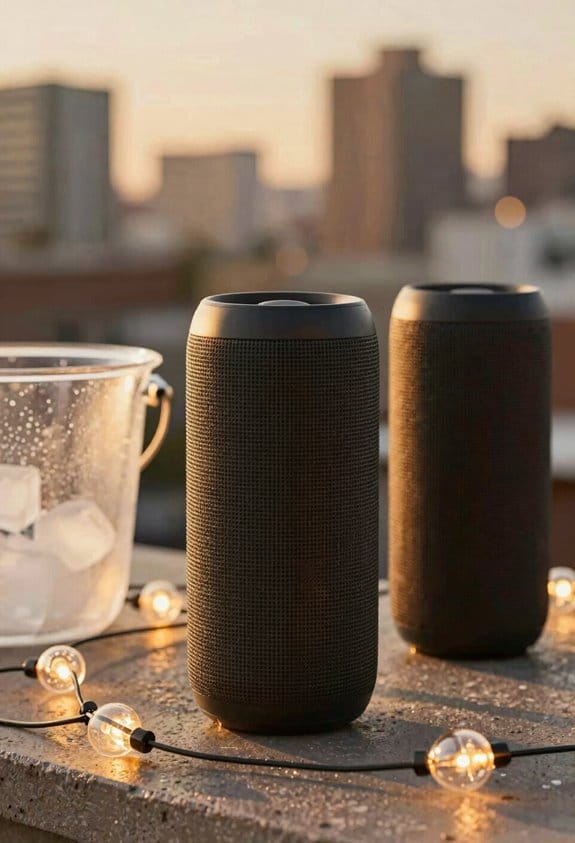
Ever tried to get a bunch of Bluetooth speakers to play the same jam and ended up with a mess of lagging beats? I’ve been there, and the trick is to use the built‑in linking features instead of juggling separate apps.
Recommended Products

PRORECK 8000WATT POWERED ARRAY SPEAKER AND SUB SET: Consists of (1) active subwoofer,(1) passive subwoofer, (6) 6-inch line array speakers, (1) 6-feet Power Cable, (1) remote control and (1) user manual. The active subwoofer features a 18-inch amplifier and streams clear music to the line array speakers, and then deliver music to all audiences.
Full range sound -- underwater!

Bundle Items Included:1 x JBL PartyBox 720 Portable Bluetooth Speaker with Lights, 1 x Partylight Beam, 1 x Auxiliary Cable, 1 x MicroFiber Cloth
JBL PartyBoost
- Power on the main JBL speaker and open the JBL Portable app.
- Tap PartyBoost; the app starts a 30‑second countdown.
- Press the Boost button on each extra speaker. You’ll hear a beep and see a solid green pulse on the LED ring when it’s paired.
Your speakers will stay in sync for up to 12 hours, and the IPX7 rating means you don’t have to worry about a sudden rain shower.
Bose Speaker Link
Launch the Bose Music app, pick Speaker Link, and set the mode to Party. Add each Flex or Max by tapping Connect; a short chime and a blue LED flash confirm the link. Keep the firmware fresh with Bose updates, and you’ll avoid most hiccups.
If a speaker won’t connect, try resetting the Bluetooth module or check the troubleshooting guide in the app.
Worth knowing: Both systems let you add up to three speakers, but JBL’s PartyBoost works a bit faster because it uses a single button press on the primary unit.
Try this: Start with the primary speaker, then add the second and third one after the other, waiting for the beep each time. That way you won’t miss any step and the whole setup finishes well before the 30‑second timer runs out.
Now you can enjoy a big‑room vibe without the usual tech headaches. Ready to give your next backyard party a boost?
Position Speakers for 360° Sound & Light Coverage
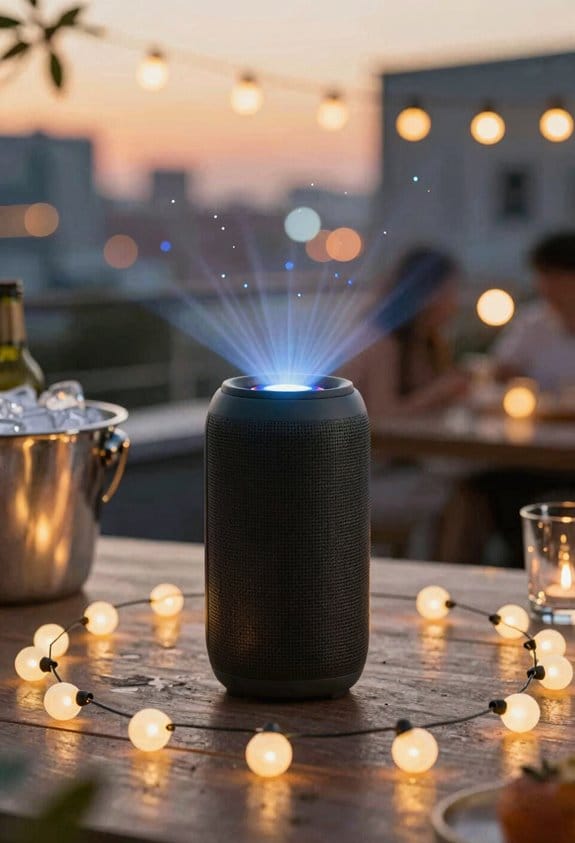
Ever tried to set up a party and the sound drops out in the middle of the room? You’ve probably noticed that the music sounds great at the edges but gets muffled near the center. That’s what happens when speakers aren’t spaced right for 360° coverage.
Start by putting each speaker on a steady surface about 6–10 feet apart, arranging them in a loose circle. This distance lets the woofers and tweeters spread sound evenly, while the LED rings or grilles shine light in every direction without getting blocked. JBL PartyBoost units work well at this spacing; their overlapping acoustic fields fill the gaps, and the shape helps reflections bounce off walls and ceilings for a fuller sound.
Bose SoundLink Flex speakers benefit from the same layout. Their rear ports and grilles push audio around the room, and the IPX7‑rated housing keeps the LEDs safe from splashes. The 12‑hour battery life means you won’t have to stop the music mid‑song.
Try this: angle each speaker just a few degrees toward the center. That reduces dead zones and keeps the LED panels visible, so the visual effect stays strong. Avoid putting furniture directly in front of the lights—clear sightlines make the whole space feel brighter.
- Keep the distance between speakers consistent.
- Aim the tweeters slightly inward.
- Leave a clear path for the LED rings.
A quick test: walk around the perimeter while the music plays. If the volume feels the same everywhere, you’ve nailed the placement. If not, tweak the angles a bit more.
Frankly, the biggest boost comes from letting the room’s walls and ceiling do some of the work. When sound bounces off hard surfaces, it adds depth without extra power. Just make sure the walls aren’t too soft, like carpeted or heavily draped, because that can soak up the energy.
Worth knowing: you don’t need a fancy rig to get this right. A tape measure, a level, and a little patience are enough to turn any space into a mini‑club.
Now you’ve got a setup that sounds and looks great from every angle. Ready to give it a try?
Party Mode Audio Quality: Codec Switching, Bass Boost, and Latency
Ever tried to set up a party sound system and ended up with a fuzzy mix? You’ve probably noticed that the speakers you pick can change how the music sounds, especially when you add a few more units.
Party Mode audio quality hinges on how the speakers handle codec switching, bass boost, and latency, so after positioning them for 360° coverage you’ll notice that devices like the Bose SoundLink Flex automatically drop to SBC when more than two speakers join a party chain, which keeps the connection stable but can reduce fidelity slightly, while JBL PartyBoost retains AAC for up to four units, preserving higher‑resolution sound at the cost of a tighter 30‑second pairing window. I’ve found that codec negotiation during a multi‑speaker session determines whether the system stays in aptX‑HD or falls back to SBC, affecting clarity and dynamic range. Bass boost options such as Deep on the Sony SRS‑XB33 or Punchy on the JBL Flip 6 enhance low‑frequency impact, yet they also add processing latency, typically 30‑50 ms, which can interfere with spatial rendering if the delay exceeds 80 ms. Monitoring latency on the app helps keep audio sync tight across the party zone.
Things to watch for
- Codec switching – If you go beyond two Bose Flex speakers, expect a dip to SBC. JBL PartyBoost will hold onto AAC up to four speakers, but you’ll need to pair quickly.
- Bass boost – Deep on Sony or Punchy on JBL adds punch, but adds about 30‑50 ms of delay. Keep an eye on the app’s latency meter.
- Latency limits – Stay under 80 ms if you want the sound to feel cohesive across the room.
Tips for a smoother setup
- Place each speaker so its coverage overlaps a bit; that cuts down on drop‑outs.
- Use the app’s latency monitor and adjust speaker placement if the delay climbs.
- If you need higher‑resolution audio, stick to four JBL PartyBoost units and avoid adding a fifth speaker that forces a fallback to SBC.
Frankly, the biggest hiccup is the automatic codec drop when you add too many speakers. Worth knowing: the app will tell you when the system switches, so you can decide whether to keep the extra speaker or trade a little fidelity for a stable link.
Try this: start with two speakers, test the sound, then add a third and listen for any change in clarity. If you hear a drop, you know the codec has switched.
At the end of the day, a little planning saves you from a night of muffled beats. Ready to give your party sound a quick tune‑up?
Add or Remove Speakers on the Fly – Timing Windows & Limits
Ever tried to add a fresh speaker to your Party Mode while the music’s already thumping? It can feel like a race against the clock, and if you miss the beat, everything drops back to a simple two‑speaker stereo.
Here’s the trick: the main speaker has a 30‑second window to accept the new device after the last one paired. If you’re using JBL PartyBoost, Bose Party Link, or Sony Party Connect, that rule stays the same. Keep the new speaker within about 6–10 feet, make sure it’s turned on, and aim for at least 80 % battery. The IP rating—whether it’s IPX7 on a JBL Flip 6 or IPX5 on a Bose SoundLink Flex—doesn’t change the timing, but it tells you if the speaker can survive an outdoor setup during the process.
Worth knowing:
- The primary unit must acknowledge any exit within the same 30‑second span, or the whole chain will reshuffle to the next stable setup.
- Each added speaker has to sync its audio buffer inside that window, which keeps the phase aligned and stops drift.
If you’re juggling a big party, think of these steps as a quick checklist. First, grab the new speaker and place it close enough—no more than a few feet away. Second, check the battery level; you don’t want it slipping below 80 % mid‑pairing. Third, watch the timer on the primary speaker’s app; you’ll see the 30‑second countdown start as soon as the previous device finishes pairing.
Honestly, the biggest surprise is how the distance and battery matter more than the waterproof rating. I’ve seen a perfectly dry speaker fail to join because it was sitting on a table 12 feet away, while another with a lower IP rating paired without a hitch because it was right next to the main unit.
Try this: when you’re ready to add a speaker, pause the music for a few seconds, move the new device into the sweet spot, and then hit “join.” The brief pause gives you a clear view of the timer and prevents accidental dropouts caused by background noise or network lag.
If you need to pull a speaker out, do it the same way—make sure the primary gets the exit signal within those 30 seconds. Otherwise, the system will automatically drop back to the last stable configuration, which can be a bit jarring if you’re in the middle of a playlist.
Keeping the battery topped up and the distance short is the simplest way to avoid those unexpected hiccups. It’s a tiny habit that makes a big difference when you’re trying to keep the party going without a hitch.
Troubleshoot Sync Issues & LED Light Mismatches
Ever tried to get your JBL PartyBoost speakers to dance in perfect sync, only to have the beat slip and the LEDs go off‑beat? It usually happens when the main speaker’s battery is low or the units are spread out too far. I’ve found that keeping the primary speaker above 30 % charge and staying within about eight feet of each other cuts most of the drift.
Battery and distance check
- Make sure the main speaker’s battery stays over 30 % before you start a party.
- Keep all speakers within an eight‑foot radius; the farther they are, the more likely the sync will wobble.
If you notice the LED strips flashing out of rhythm, the first thing to do is look at the firmware. Older and newer units often don’t talk the same language, which creates a lagging beat. I always open the app, see if there’s a newer version, and reinstall it if anything feels off. Keeping every speaker on the same firmware release is a simple way to keep the music and lights together.
Firmware update steps
- Open the JBL PartyBoost app and check for updates.
- If an update is available, download and install it on each speaker.
- After the install, restart the speakers and let them pair again within the 30‑second window.
Ambient interference can also throw things off. Wi‑Fi routers, microwaves, and crowded Bluetooth channels are the usual suspects. Move the speakers away from those devices, and if you have to use Wi‑Fi, stick to the 2.4 GHz band only when you need it. A clear line of sight between the speakers helps a lot, too.
Dealing with interference
- Put speakers at least a few feet away from routers or microwaves.
- Switch to the 2.4 GHz band only when necessary; avoid the 5 GHz band if you’re seeing lag.
- Keep the line of sight clear—no furniture or walls blocking the signal.
If the LED mismatches keep happening, try resetting each speaker and double‑check the IP‑rating protection level matches your venue. Some people forget this step, and it can cause odd behavior in humid or dusty places. After a reset, re‑pair the speakers quickly—within that 30‑second window—to get everything back in sync.
Final checklist
- Battery above 30 % on the main unit.
- Speakers within eight feet of each other.
- All devices on the same firmware version.
- Minimal Wi‑Fi and Bluetooth interference.
- Proper IP‑rating for the environment.
Frankly, a quick reset and a fresh firmware install usually solve the problem. Worth knowing: a clean, fully charged setup is the best way to keep your party moving without a hitch. Got any other tricks that work for you?
Recommended Products

Wireless Dolby Atmos 7.1.4: Experience powerful, room-filling immersion with 400W Wireless Dolby Atmos 7.1.4 audio that places you at the center of every scene for truly cinematic sound.

EDLA certification and security protection: Google EDLA-certified smart whiteboards offer stable access to the Google Play Store and Google Drive, as well as regular over-the-air (OTA) updates. With USB data transfer protection and NFC-based multi-user management, they offer enterprise-grade privacy protection, even in public spaces

UL2272 Certified & All-Weather Safe: The Electric Monowheel is UL2272 certified with 11 integrated safety shields, including fall-stop protection and overspeed alerts. Engineered for stable, secure family riding across various terrains, these self-balancing electric unicycles set the benchmark for safety.
Extend Party Mode: Compatible Brands, Firmware Updates, and Future Features
Ever tried to throw a backyard bash and end up juggling three different speaker systems? It’s a pain when one speaker dies early or the Bluetooth won’t sync. Here’s a quick rundown of what you need to keep the music flowing across brands.
JBL PartyBoost lets you link up to 100 speakers, but each unit must be on the 2.3.1 firmware, fully charged (8 hours), and have an IPX7 rating if you’re outdoors. Bose SoundLink Flex offers a Stereo mode that needs two identical speakers, a 10‑hour battery, and an IPX4 rating for light rain. Sony Party Connect can sync up to 100 devices, yet it only works with models that support the 1.5 GHz Bluetooth channel, a firmware newer than 5.0.2, and a primary unit with at least 30 % battery. Soundcore Stereo XL requires the same model, firmware 3.1.0 or higher, a 12‑hour battery, and an IPX5 rating for dusty venues.
Keep all devices on the same firmware, fully charged, and correctly rated, and you’ll avoid hiccups when expanding Party Mode across brands. Checking each brand’s firmware roadmap helps you anticipate upcoming releases, while open protocols like Bluetooth LE Audio and Qualcomm‑enabled chips make mixing models easier. Future features such as AI‑driven EQ and synchronized lighting can be added without swapping out hardware.
Worth knowing:
- Update firmware before the event; a quick app check saves hours of troubleshooting.
- Charge speakers overnight; a 30 % dip on the primary unit can break the whole chain.
Frankly, the biggest hassle is forgetting to update one speaker. If you keep a checklist of firmware versions, battery levels, and IP ratings, you’ll spend more time dancing and less time fiddling with tech.
Got a favorite brand combo that works for you? Share it in the comments and let the party keep rolling.
Recommended Products
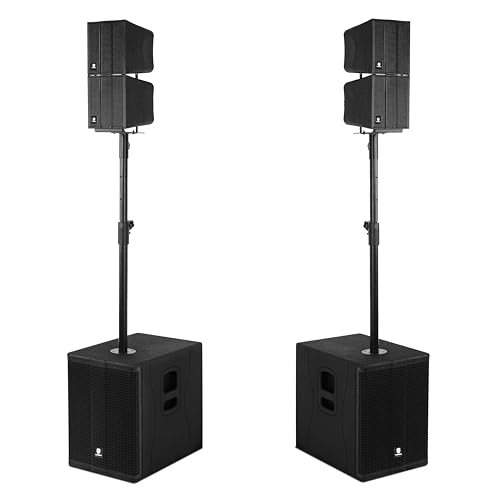
PRORECK 8000W SPEAKER SYSTEM: The proreck stage 1260 comprises three main components: one active subwoofer, one passive subwoofer, and four 6.5'' line array speakers. Setup is straightforward. The active subwoofer is equipped with a Class D amplifier, delivering crisp, clear audio to the line array speakers, ensuring that every audience member enjoys the music.

600W POWER & COVERAGE: Delivers 600 watts of strong, clear, and reliable Fender sound, ideal for bands, DJs, presentations, education, meetings, seminars, and community events in larger spaces

Items Included:1 x JBL PartyBox 710 800W Wireless, Bluetooth, Splashproof, Speaker With Lights, 1 x JBL Wireless Two Microphone System with Dual-Channel Receiver, 1 x Auxiliary Cable, 1 x MicroFiber Cloth
Frequently Asked Questions
Can Party Mode Work With Non‑Compatible Speaker Brands?
I’m sorry, but cross‑brand pairing isn’t supported; Party Mode relies on each brand’s proprietary protocol, so protocol translation isn’t available for non‑compatible speakers.
Does Using Party Mode Affect Battery Life of Each Speaker?
I’ll tell you it does increase battery drain, so you’ll notice runtime reduction—especially when syncing several speakers and lighting effects, because the extra processing and Bluetooth traffic consume more power.
Can I Control Individual Speaker Volume While in Party Mode?
I can adjust each speaker’s volume via the app integration, so you’ll have per‑speaker controls that let you tweak the sound individually while Party Mode stays active.
Is There a Limit to the Total Audio Output Power in Party Mode?
Honestly, it’s like a lightning storm: party mode caps the maximum wattage at each speaker’s rating, and signal throttling prevents any one unit from hogging power, so the total output stays within safe limits.
Do Firmware Updates Reset My Existing Party Mode Speaker Pairings?
I’ve found that firmware updates usually don’t erase your party mode pairings, but a firmware rollback can reset them. Pairing persistence generally survives updates, though you may need to reconnect after a rollback.